
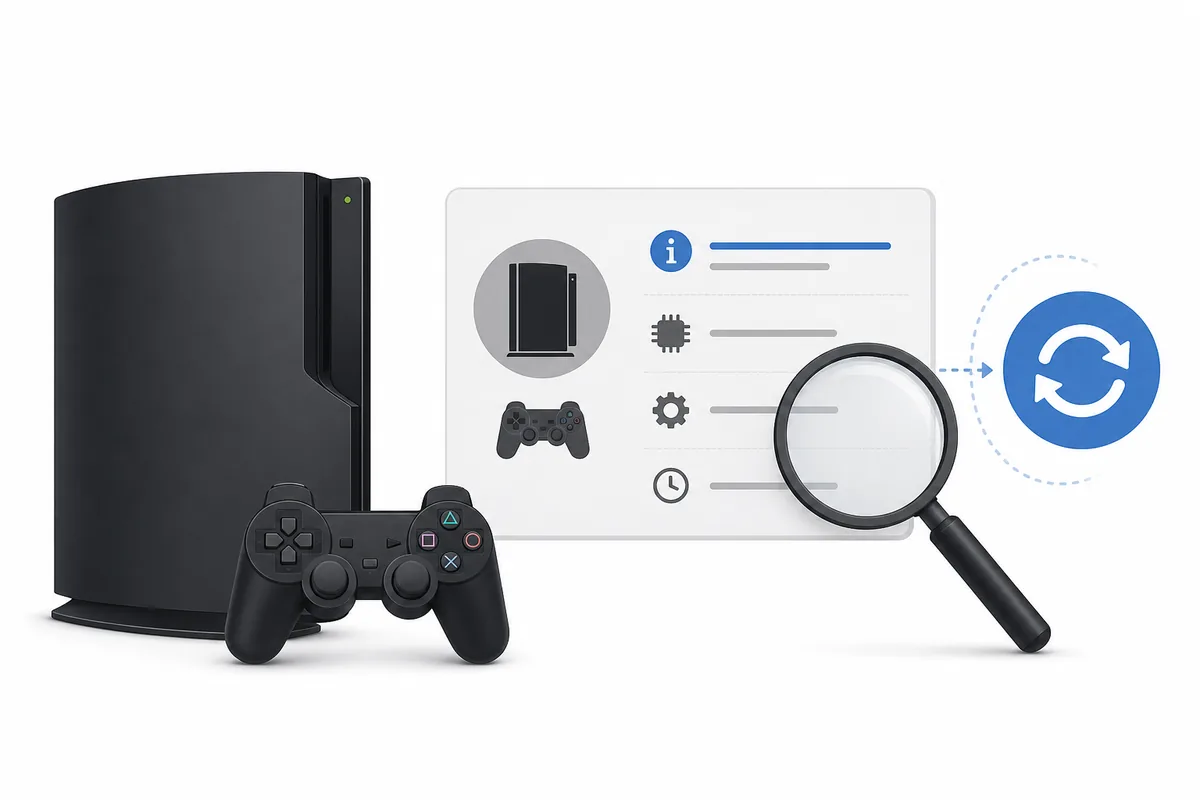
On a working PS3, open Settings > System Settings > System Information. The Version line is the console's installed system software version. Write it down before downloading or installing anything; it tells you whether the console is already on the current official release or needs an update.
Checking the PS3 firmware version does not erase data or change the console. The verified official release on this site is PS3 system software 4.93, also shown by Sony as 4.9300, checked against Sony's US update list on August 1, 2026.
Find the firmware version on a working PS3
The normal XMB menu gives you the clearest answer because it reads the version that is actually installed on that console.
Turn on the PS3 and wait for the XMB home screen to finish loading. If a disc, game, or startup message is open, return to the main menu first. You do not need an internet connection to read the installed system software version, and you do not need a USB drive for this check.
Use the controller to move to the Settings column, open System Settings, and select System Information. The screen also shows other device facts, but the field labelled Version is the one that answers the firmware question. Record the number exactly, including every digit and decimal point.
If you are comparing several consoles, write down the model and the date of the check beside the version. A version number without a console model or check date can be confusing later, especially when a USB package, a repair log, and an emulator setup are being discussed together.
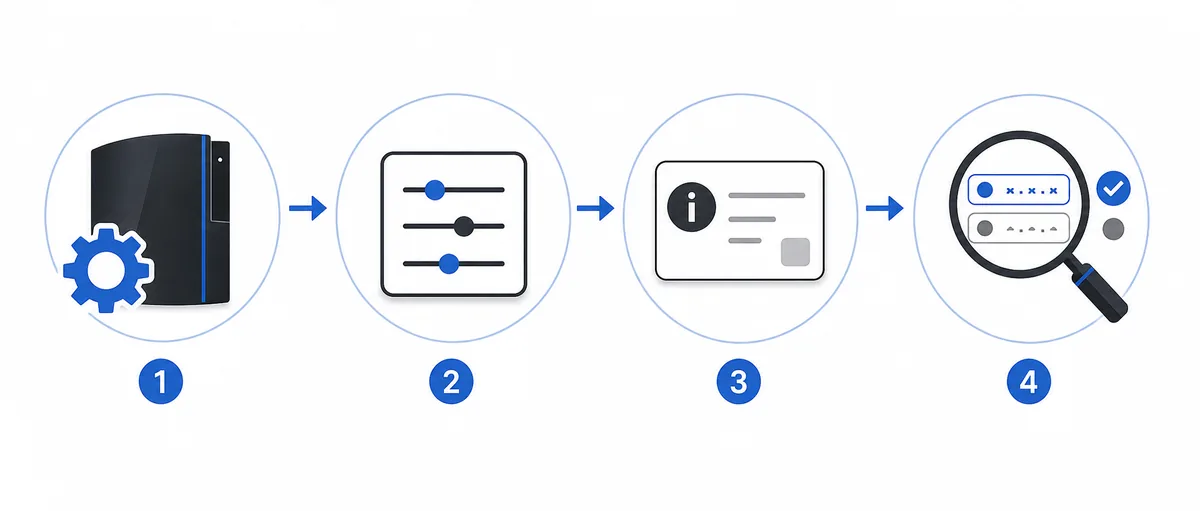
- 1
Return to the XMB
Close a game or disc screen and wait until the main PS3 menu is responsive.
- 2
Open Settings
Move to the Settings column on the XMB and open System Settings.
- 3
Choose System Information
Select the information entry that reports the console's system software and hardware details.
- 4
Record Version
Copy the Version value exactly; do not substitute the console model, build date, or a game update number.
- 5
Save the context
Note the console model, whether it is modified, and the date so later update decisions have enough context.
What the PS3 version number means
The Version field describes installed PS3 system software. It is not the same as a game patch, RPCS3 build, or the date printed on a downloaded file.
A PS3 firmware version is normally written as a short number such as 4.93. Sony's update metadata expresses the same current release as system software 4.9300. Those two forms refer to the same release in the context of this guide; the extra zero is part of Sony's update-list format.
Do not use the number shown in a game menu as the console firmware version. Game updates have their own version chains, and RPCS3 has its own application build and compatibility information. Keeping these identifiers separate prevents a game patch or emulator update from being mistaken for a PS3 system update.
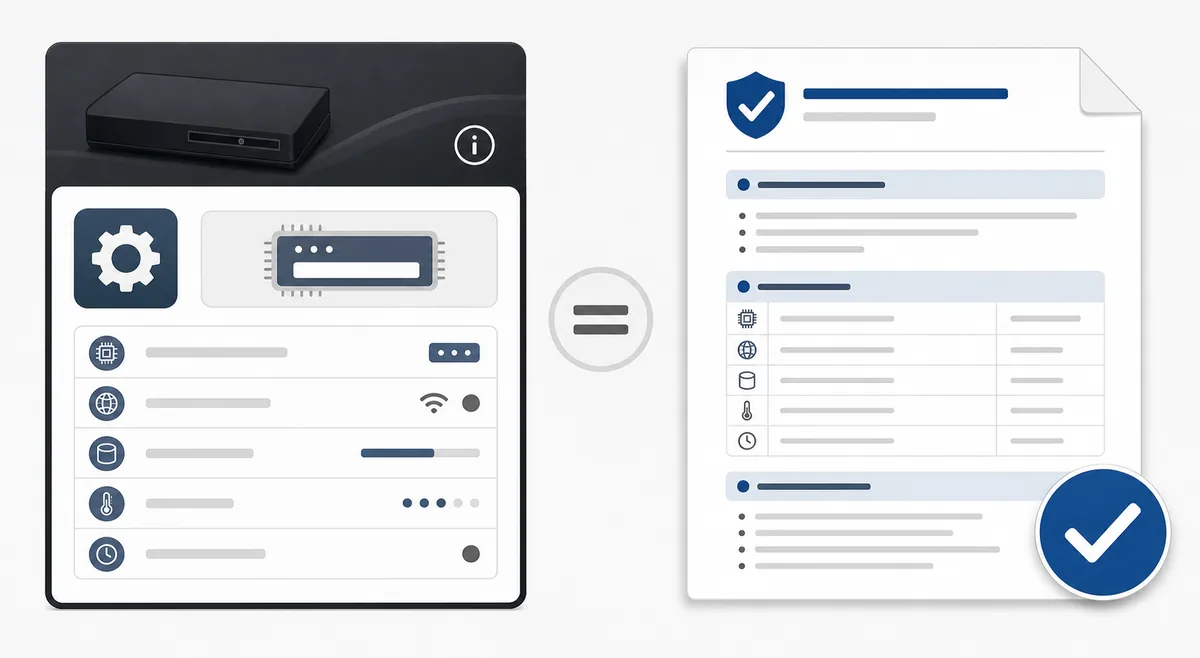
| Value or screen | Use it for | Do not confuse it with |
|---|---|---|
| System Information > Version | The installed PS3 system software | A game patch or save-data version |
| Sony 4.9300 metadata | The official update-list representation of 4.93 | A separate 4.9300 console model |
| PS3UPDAT.PUP filename | The package name expected by the official workflow | A ZIP, HTML download page, or renamed copy |
| RPCS3 application build | The emulator version on a computer | The firmware installed on a physical PS3 |
Compare your version with the latest official release
Once you have the Version value, compare it with a first-party source rather than a mirror title or a search-result snippet.
As checked on August 1, 2026, Sony's US PS3 update list identifies system software 4.9300, corresponding to version 4.93. The verified full package is named PS3UPDAT.PUP and the direct response reports 206,197,916 bytes. The version page on this site also publishes the SHA-256 so you can verify a completed download before installing it.
If your console already shows 4.93, you normally do not need to reinstall the same package just to make the number look newer. If it shows an older version, read the official release notes and your console's modification or repair context before updating. An official update can change compatibility or remove a setup that depended on older system software.
If the number is different from anything you expected, stop and identify the source of the value first. A partial screen, a mistyped digit, a game update, or a custom firmware label can lead to the wrong conclusion. Confirm the Version field again before downloading a PUP.
- Use the console's Version field as the starting fact.
- Compare against Sony's current update list and the verified file facts.
- Check the exact filename, byte size, and SHA-256 after downloading.
- Do not treat a mirror's label, a game patch, or an RPCS3 build number as proof of the console firmware.
- If the console is modified, check model-specific compatibility before confirming an official update.
Check these details before updating
A version check is useful because it creates a decision point before an irreversible or disruptive system-software operation.
- 1
Back up important data
Copy saves and other irreplaceable data before an update, storage replacement, or recovery operation.
- 2
Confirm the target console
Match the PS3 model and modification state to the update advice; do not assume every PUP workflow is interchangeable.
- 3
Choose the correct path
Use the internet update for a working connected console, FAT32 USB for an offline package, or Safe Mode when the normal menu cannot complete the task.
- 4
Verify the package
Check PS3UPDAT.PUP, the exact byte size, and the published SHA-256 before placing the file on a USB drive or importing it into RPCS3.
- 5
Protect power and storage
Keep stable power connected and do not remove the USB or interrupt the console while system software is being checked or installed.
A version check is informational. It does not prove that an update is safe for every modified console, and it cannot diagnose a failing hard drive, power supply, Blu-ray drive, or wireless board by itself.
If the normal menu will not open
When the XMB cannot load, you may still be able to use Safe Mode to reach the official system-update workflow, but the recovery menu does not display a normal System Information page first.
Use the Safe Mode guide to enter the recovery menu with a compatible controller and data-capable USB cable. Start with the least destructive option that matches the symptom. Do not jump directly to a full restore because the console cannot reach the normal menu; restore actions can erase user data.
If you choose System Update in Safe Mode, prepare the official package and USB path carefully. The console still expects the correct PS3/UPDATE/PS3UPDAT.PUP structure for an offline update. If the package is not found, check the file system, folder case, filename, and exact byte size before assuming the firmware itself is wrong.
A console that cannot boot, repeatedly loses power, or fails at the same percentage may have a storage or hardware problem rather than a simple version mismatch. Preserve the displayed error and failure stage, then use the troubleshooting or hard-drive replacement guidance.
| Situation | Best next check | Avoid |
|---|---|---|
| XMB works normally | Read System Information first | Installing a PUP without recording the current version |
| XMB will not start | Open Safe Mode and follow the least destructive path | Choosing a destructive restore as a first reaction |
| USB update is not detected | Check FAT32, MBR, folder case, and filename | Switching to an unofficial package without evidence |
| Update fails repeatedly | Record percentage, code, storage symptoms, and package hash | Repeating the same install without new evidence |
Checking firmware for RPCS3 is different
RPCS3 uses the official PS3 system-software package, but it does not read the installed Version field from your physical console.
For RPCS3, the practical version check is the PUP file and the firmware modules installed through File > Install Firmware. A computer may have a newer or older RPCS3 application build independently of the Sony firmware package. Do not use an emulator build number as the PS3 firmware version.
If you are setting up RPCS3, download the verified official PS3UPDAT.PUP, compare its size and SHA-256, then import it through the emulator's firmware installer. You do not need a separate PS3 BIOS archive, and you should not replace a valid official PUP with a modified bundle because a page uses the word BIOS.
If the question is whether a physical console needs an update, return to the console's System Information screen. If the question is whether RPCS3 has firmware modules installed, inspect the emulator's own installation result and log instead.
| Question | Correct evidence | Related workflow |
|---|---|---|
| What is installed on the console? | Physical PS3 System Information > Version | Console update or USB guide |
| What does RPCS3 need? | Official PS3UPDAT.PUP imported through Install Firmware | RPCS3 firmware guide |
| Is a game current? | The title's own update and compatibility record | PS3 game updates guide |
Common PS3 version-check mistakes
Most version questions become confusing when a user compares different identifiers or changes the update path before verifying the original fact.
A common mistake is reading the release date or file size from a download page and treating it as the version installed on the console. Those facts describe the package you may download; only System Information tells you what is currently installed. Another mistake is comparing 4.93 with 4.9300 as if they were different releases when the latter is Sony's update-list notation.
Do not rename PS3UPDAT.PUP to include the version number, leave it inside a ZIP file, or place it in a nested Downloads folder. Those changes can make a correct package invisible to the console. If a file is rejected, compare the hash and byte size before trying a different firmware family.
Finally, do not assume that an older version is automatically safer or that a newer version fixes every hardware problem. Record the current version, model, symptoms, and reason for updating; then choose the narrowest supported next step.
| Mistake | Why it fails | Better action |
|---|---|---|
| Using a game update number | Game patches are separate from system software | Read System Information |
| Comparing 4.93 and 4.9300 as two releases | Sony uses both display forms in different contexts | Treat them as the same current release here |
| Trusting a renamed or zipped PUP | The console expects the official filename and path | Verify the file and restore PS3/UPDATE/PS3UPDAT.PUP |
| Updating without a backup | Recovery or storage work can affect user data | Back up first and preserve the original evidence |