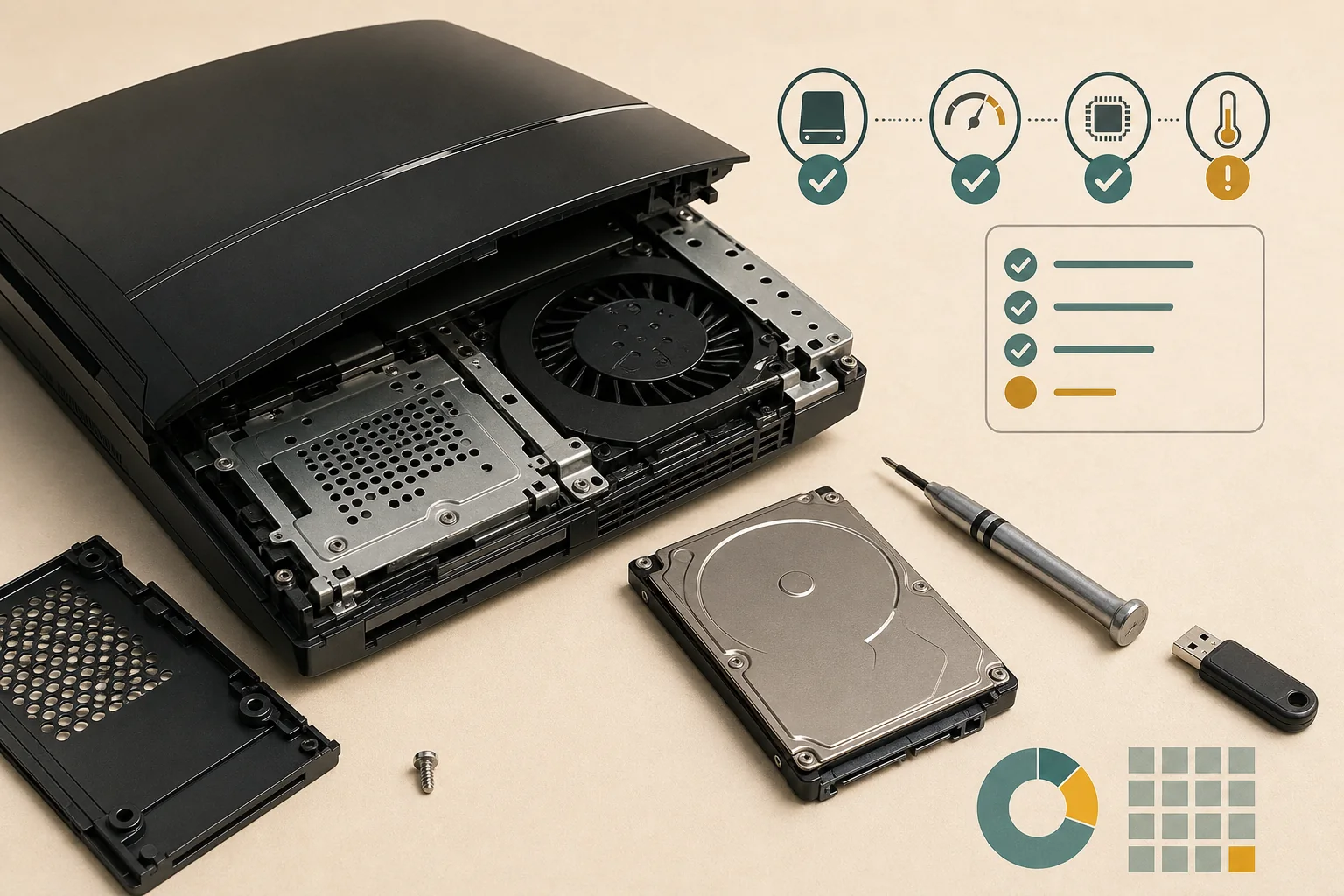
A PS3 does not provide a complete SMART health dashboard in the normal XMB menus. Start with the least destructive evidence: back up important data, note whether failures repeat with the same files or percentage, and separate internal-storage symptoms from USB or firmware symptoms.
For a stronger check, power the console down, remove the 2.5-inch SATA drive only when you are comfortable doing so, and connect it to a computer with a suitable adapter. Use a read-only health or surface test first. If the drive clicks, disappears, cannot complete a backup, or reports unreadable sectors, preserve the evidence and plan the official reinstall path before repeated power cycles make recovery harder.
What PS3 hard-drive symptoms actually tell you
A single freeze is weak evidence. A pattern that follows the console storage across menus, games, backups, and updates is more useful.
Common storage warning signs include unusually long loading, repeated freezes while reading different files, corrupted data that returns after a fresh official download, a file-system repair prompt, the internal drive disappearing from the system, or clicking and spin-up noises. These signs justify a backup and a health check; they do not identify the exact failed component by themselves.
A PS3 update can also fail because a USB drive is NTFS or exFAT, the partition map is unsuitable, the folder path is wrong, the PUP is incomplete, or a controller or board fault interrupts the process. Do not label every update loop as a bad hard drive. First compare the official 4.93 file size and checksum, test a known-good FAT32 MBR USB drive, and record the exact failure stage.
The useful question is not simply whether the console is slow. Ask whether the same storage-related behavior appears during a backup, in more than one application, after a cold restart, and when the USB firmware path has already been verified. That chronology gives a repairer more evidence than a single error-code lookup.
Quick symptom table: storage, USB, firmware, or hardware?
Use the pattern to choose the next low-risk test instead of replacing parts at random.
| Observed pattern | What it may suggest | Next check | Do not conclude yet |
|---|---|---|---|
| One game freezes once | Game data, disc, or unrelated software | Test another title and inspect the disc or install | That the internal drive is failing |
| Several menus or games stall and files corrupt | Storage read or write instability | Back up immediately and test the internal drive | That firmware is the only cause |
| USB is not detected at all | FAT32, MBR, port, hub, or drive problem | Rebuild PS3/UPDATE on a known-good simple USB drive | That the internal HDD is bad |
| Verified PUP stops at the same percentage | Storage, dependent hardware, power, or model-specific fault | Record the percentage, model, code, and chronology | That another random PUP will fix it |
| Drive clicks, vanishes, or fails an external test | Likely storage failure or connection problem | Preserve data and plan replacement or professional recovery | That a reinstall can recover every file |
Run safe checks before removing the drive
Protect data first. A diagnostic step is not useful if it destroys the only readable copy of a save or photo.
Back up important saves and media while the console still starts. Use the PS3 Backup Utility for a broad backup when possible, and keep especially important saves in a separate copy when the game or account workflow permits it. Do not wait for a complete failure before deciding what matters.
Write down the console model, the symptom, the first date noticed, whether it follows a drive replacement or power event, and the exact update percentage or message. Then test the least invasive alternative: another title, a cold restart, a known-good USB port, or a verified firmware package. Avoid repeated forced shutdowns and avoid formatting until the evidence is preserved.
- 1
Back up before experimenting
Copy saves and irreplaceable data while the PS3 can still read them.
- 2
Separate the failure stage
Decide whether the failure happens in download, USB detection, validation, installation, or restart.
- 3
Record repeatable evidence
Keep the model, code, percentage, noise, and chronology together for comparison.
Test the PS3 drive outside the console
An external test can be more informative than the XMB, but it requires careful handling and a compatible SATA-to-USB or desktop connection.
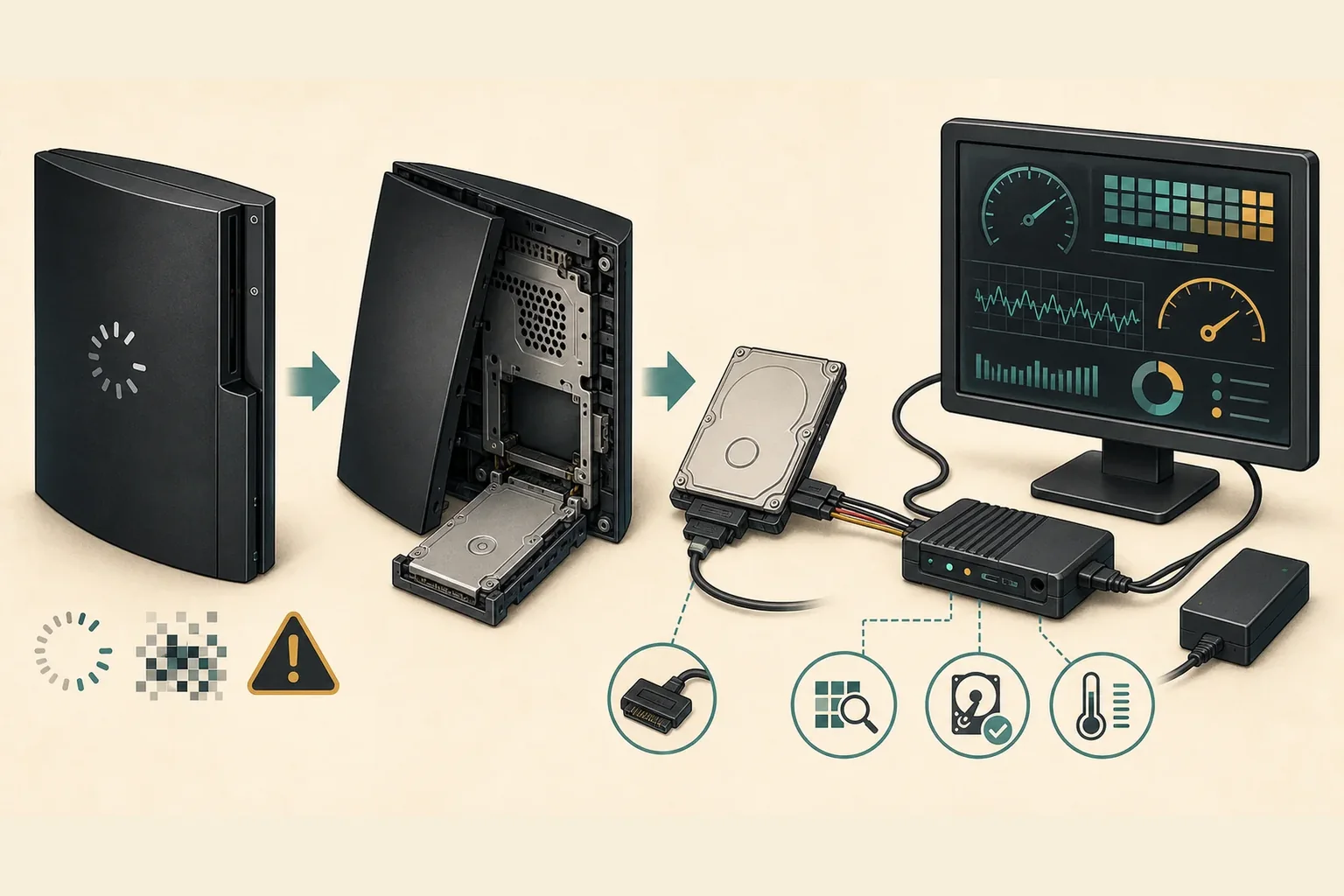
Power the PS3 off completely and remove the internal 2.5-inch SATA drive only after you understand the model-specific caddy and connector layout. Connect it to a computer with a reliable adapter or enclosure. If the computer does not see the disk, check the adapter, cable, power, and partition visibility before declaring the drive dead.
Start with a non-destructive health summary and a read-only surface or long test from a trusted disk utility. Look for unreadable sectors, repeated interface errors, a failed long test, or health warnings that persist after reconnecting. Do not begin with a destructive erase, secure wipe, or repair command when the goal is to recover data.
A clean external result does not prove that the PS3 backplane, power, connector, or firmware path is healthy. Conversely, a drive that fails independently of the console is not a safe place to keep the system installation. Save the test report, then choose backup, replacement, or qualified repair based on the evidence.
When to replace the drive
Replacement is reasonable when storage failure is repeatable or the drive cannot protect data reliably, not merely because one update failed.
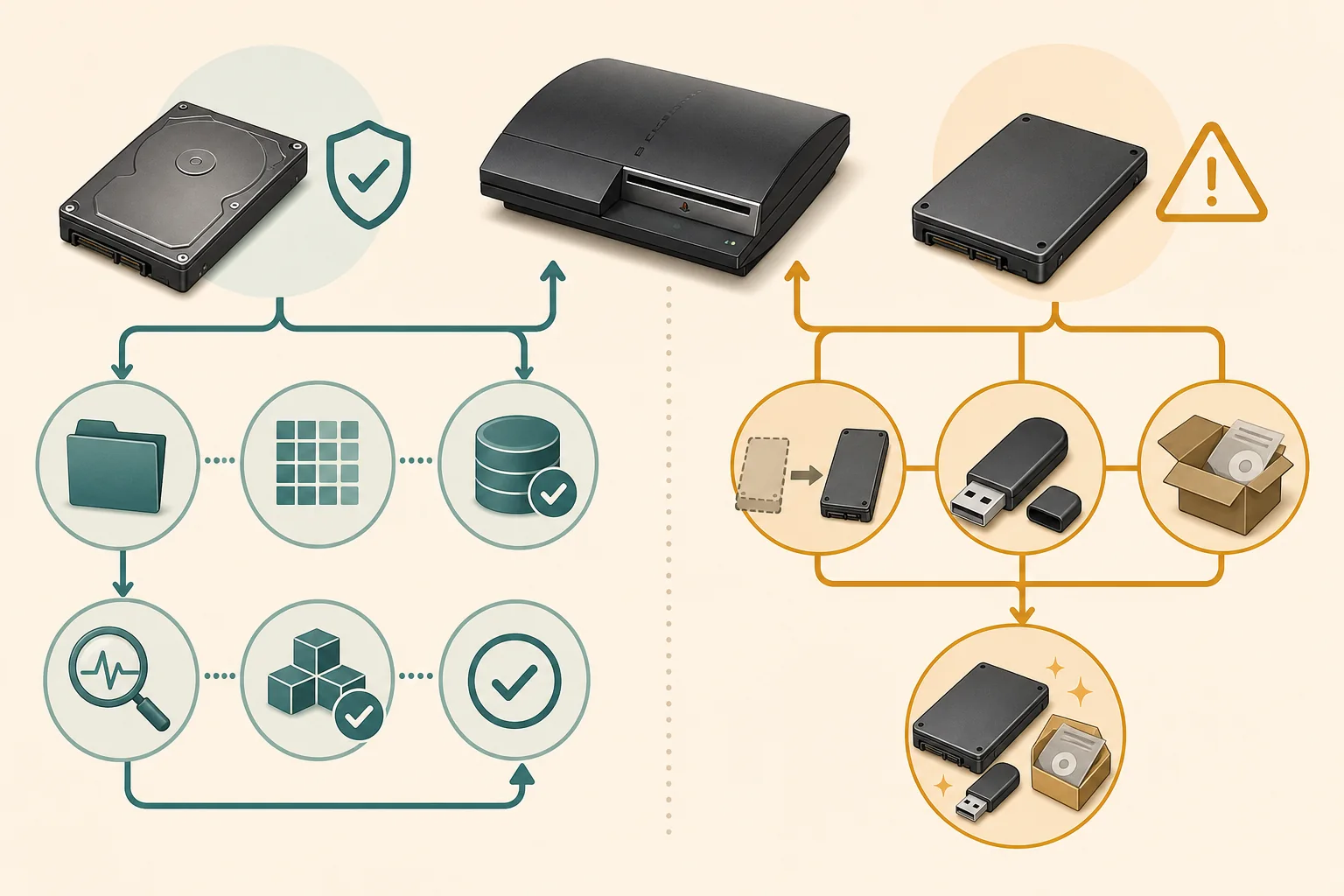
Plan a replacement when the drive fails an independent health or surface test, produces repeated unreadable-sector errors, disappears after a stable connection, makes persistent mechanical noises, or cannot complete a backup that previously worked. Keep the original drive untouched if data recovery may matter, and do not mix a failing disk into repeated installation experiments.
A 2.5-inch SATA HDD is the conventional low-cost choice. A compatible SATA SSD can be quieter and more responsive in some menus, but it does not repair a faulty PS3 power, wireless, optical, connector, or motherboard circuit. Use the model-specific caddy and back up before opening the console.
- Use the original caddy and confirm the drive is seated before diagnosing firmware again.
- Keep the old drive until backups and the new installation are confirmed.
- Do not treat a checksum match as proof that a console or replacement drive is healthy.
- Stop and seek qualified help if the next step involves live-board measurements, soldering, or irreplaceable data.
Reinstall official PS3 system software after replacement
A blank or reformatted replacement drive normally needs the official system-software reinstall workflow.
Prepare a simple FAT32 MBR USB drive with the exact uppercase path `PS3/UPDATE/PS3UPDAT.PUP`. Use the verified official 4.93 package, compare its complete byte count and SHA-256, and keep power stable during formatting, installation, and every restart. If the normal XMB is unavailable, use the Safe Mode System Update option rather than a destructive restore chosen by guesswork.
At the August 16, 2026 freshness check, Sony's support and update sources still pointed to system software 4.93, also represented as 4.9300. The site's full file verification remains dated August 1, 2026; the current check did not find a newer release or a changed verified file size. Use the version details page for the source, checksums, and current download path.
- 1
Prepare the verified USB path
Use FAT32, MBR, PS3/UPDATE, and the exact PS3UPDAT.PUP filename.
- 2
Choose the least destructive update route
Use the normal System Update menu or Safe Mode System Update when XMB cannot complete the process.
- 3
Restore and test data
Do not interrupt power; confirm the new drive, backup, and core system behavior before returning to normal use.
A new drive can solve a storage failure, but it cannot prove or repair a separate power, wireless, optical, connector, or motherboard fault.
What this check cannot prove
A symptom list is not a component-level diagnosis. The same update loop can involve storage, a USB transfer, power stability, a dependent peripheral, or a model-specific board issue. Community error-code tables are useful evidence, not an official Sony diagnosis for every console revision.
This guide is designed to protect data and reduce blind firmware retries. It does not provide a board-repair procedure, guarantee recovery of a failing disk, or promise that an official package is compatible with every modified console. Preserve the raw evidence and use a qualified repair path when the safe external checks are exhausted.
Do not open a powered console or perform live electrical measurements unless you have model-specific training, equipment, and a safe repair environment.