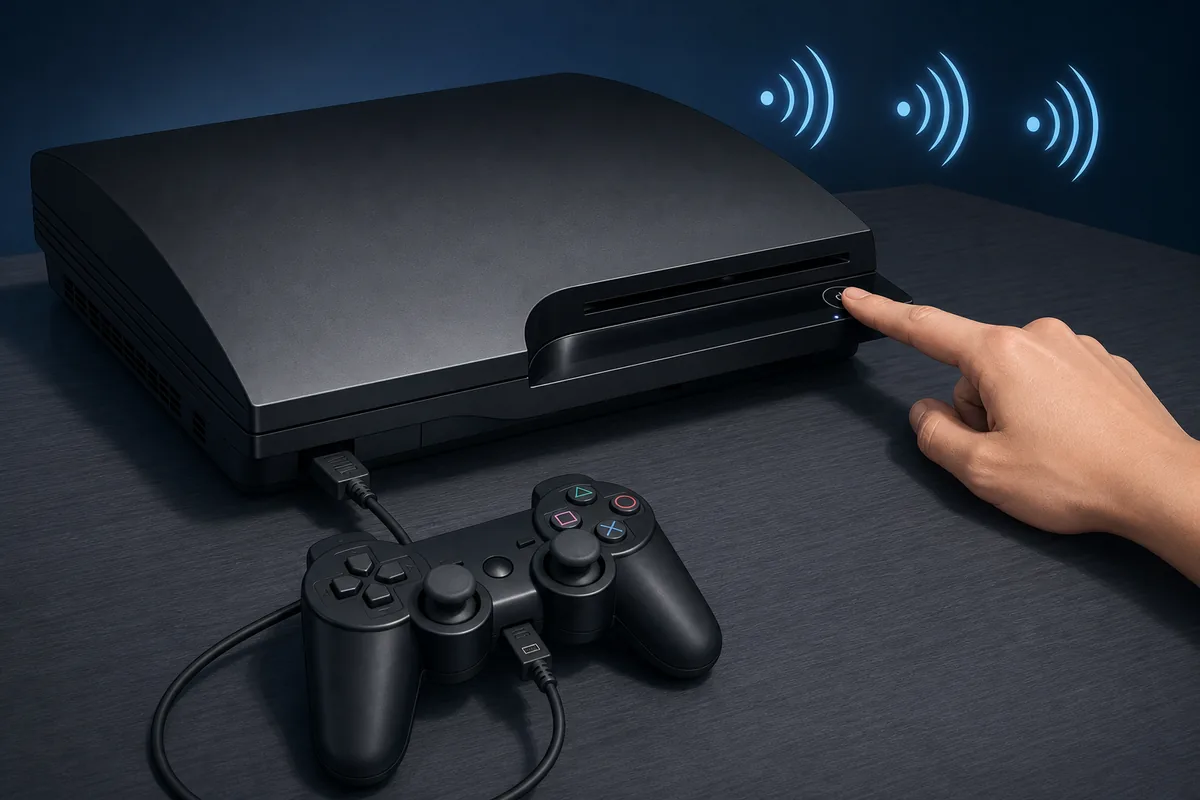
To enter PS3 Safe Mode, begin with the console in standby. Hold the power button until the system turns on and then turns off again. Release it, hold it a second time, and release immediately after the quick double beep. Connect a compatible controller with a USB data cable and press the PS button.
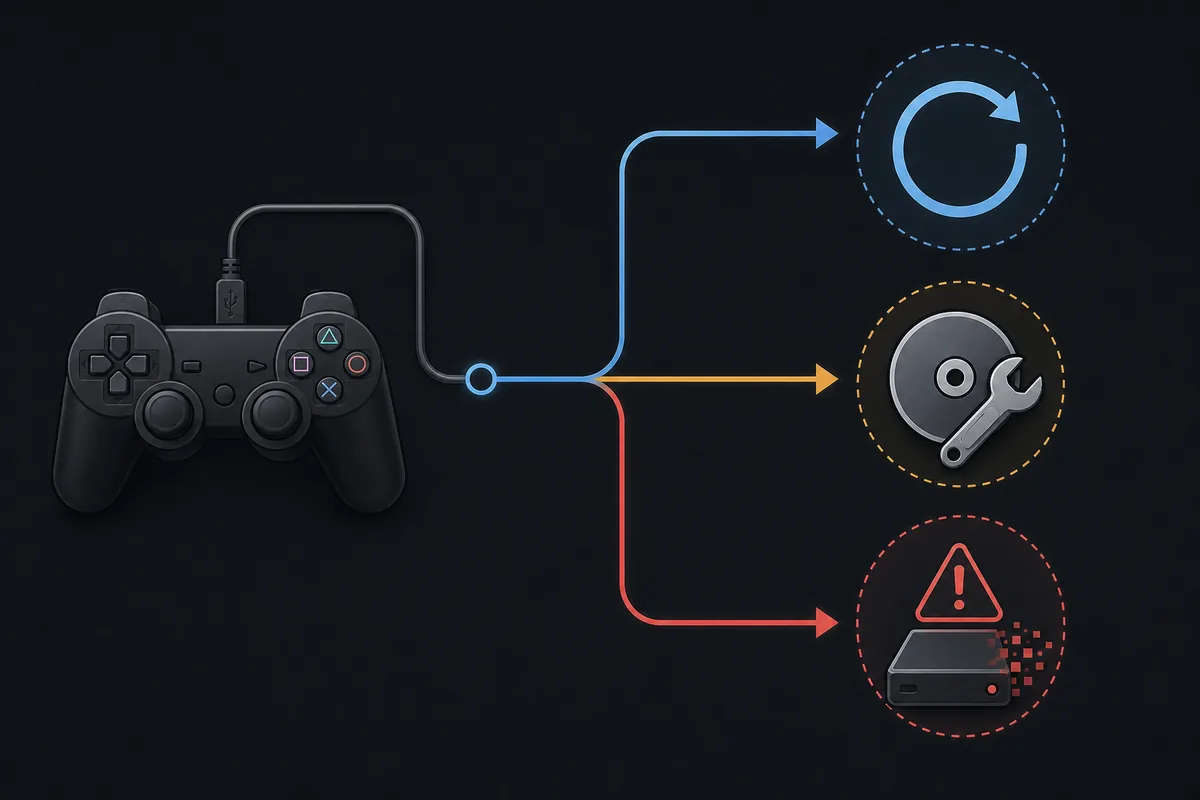
Start with Restart System, Restore File System, or Rebuild Database when those options match the symptom. System Update installs official firmware from the internet or a correctly prepared USB drive. Restore PS3 System is destructive and should be used only when you intend to erase the console and have accepted the data loss.
Before you open the PS3 recovery menu
Safe Mode is a maintenance environment, not a guaranteed repair. It can help when the XMB will not load, the file system reports corruption, the database needs rebuilding, display settings prevent a normal picture, or a system-software update must be started outside the normal menu. It cannot repair failed storage, damaged power hardware, a faulty Blu-ray drive, or a broken Bluetooth/Wi-Fi board by itself.
Back up saves and other irreplaceable data whenever the console still starts normally. Use stable AC power and avoid repeated forced shutdowns. If the PS3 is modified with CFW or HEN, check current model-specific guidance before installing official firmware or choosing a restore action because modification compatibility is outside the scope of this OFW guide.
- Use a controller that can communicate over USB, not a charge-only cable.
- Disconnect unnecessary USB storage and accessories until the menu appears.
- Record any error code, failure percentage, or looping behavior before changing the system.
- Prepare a FAT32 USB drive only if you plan to use System Update.
How to enter PS3 Safe Mode
The timing is based on the console beeps. If the system boots normally, shut it down and repeat the sequence without rushing the final release.
- 1
Start from standby
Turn the PS3 off so only the red standby light remains. Do not begin while the console is frozen with a green light.
- 2
Complete the first hold
Press and hold the power button. Keep holding after the first beep until the console powers off and returns to the red light, then release.
- 3
Listen for the double beep
Press and hold the power button again. You will hear an initial beep, another beep later, and then two quick beeps. Release immediately after the double beep.
- 4
Connect the controller
Attach a compatible controller with a USB data cable and press the PS button. Wireless-only pairing is not available at this stage.
If the console turns off before the double beep, begin again from standby. If it reaches the XMB, you probably released too early or the controller cable cannot carry data.
What each PS3 Safe Mode option does
Menu wording can vary slightly by system language, but the recovery menu normally presents six actions. The safest approach is to match the option to the symptom and avoid using a broader reset as a shortcut. Restart changes nothing. Display reset only addresses video-output settings. File-system and database tools target storage structures, while full system restore erases user data.
Restore File System and Rebuild Database are not identical. File-system repair checks structural errors and may remove damaged entries. Database rebuild reindexes visible content and can change folders, messages, playlists, or organization. Neither option should be interrupted, and neither guarantees that a physically failing hard drive will become reliable.
| Safe Mode option | Best use | Data impact | Firmware role |
|---|---|---|---|
| Restart System | Exit Safe Mode and try a normal boot | None expected | No |
| Restore Default Settings | Reset system and display settings | Account and content should remain, but settings change | No |
| Restore File System | Repair detected file-system corruption | Damaged data may be removed | No |
| Rebuild Database | Reindex content, icons, messages, and metadata | Organization and some metadata can change | No |
| Restore PS3 System | Erase and return the console to factory state | Deletes user data | Not a normal update method |
| System Update | Install official system software | Designed to preserve user data, but updates always carry interruption risk | Yes |
Do not choose Restore PS3 System simply because another option is slow. It is the data-erasing choice, not a stronger version of Rebuild Database.
Use System Update for official PS3 firmware 4.93
Choose System Update when the console specifically needs system software and the normal XMB updater is unavailable. The current verified official release is 4.93, published March 18, 2026. The complete US PS3UPDAT.PUP is 206,197,916 bytes with SHA-256 158471fd834f8ea8036136b6aab43cd86c7ba73d79ca30e0af3c0fe0001cf365, verified again from Sony's update server on July 16, 2026.
For USB installation, format the drive as FAT32 with an MBR partition table, create PS3/UPDATE at the root, and place the file at PS3/UPDATE/PS3UPDAT.PUP. Keep the uppercase filename. Safe Mode does not compensate for an incomplete file, the wrong folder, unsupported storage format, or firmware older than the version already installed.
- Use the complete PS3UPDAT.PUP, not PS3PATCH.PUP.
- Verify the exact byte size and SHA-256 before installation.
- Leave the console connected to stable power until the update finishes.
- Stop and record the error if failure repeats at the same percentage.
What to check when PS3 Safe Mode will not start
A failed Safe Mode attempt is often a timing or controller-connection problem, but repeated failure can also point to hardware. Confirm the console can reach standby, repeat the two-hold sequence, and try a known USB data cable. A cable that charges a controller is not proof that it carries data. Try another front USB port and a genuine or known-compatible controller before assuming the recovery menu is unavailable.
If there is no standby light, the console powers off instantly, the beeps never progress, the screen remains blank after a display reset, or the system loops at the same update percentage, stop repeating resets. Those symptoms can involve storage, power, video output, the Blu-ray drive, or Bluetooth/Wi-Fi hardware. Preserve the exact model number and error code for repair research.
- No image: try the display-reset sequence and another HDMI or AV path.
- Controller not detected: replace the cable with a confirmed data cable.
- Update not found: recheck FAT32, MBR, PS3/UPDATE, filename, size, and hash.
- Repeated hardware-related error: do not use a factory restore as a guess.
Choose the least destructive recovery path
A practical order is Restart System, Restore Default Settings when the problem is configuration, Restore File System for corruption warnings, and Rebuild Database for indexing or XMB content problems. Use System Update only for a system-software need. Reserve Restore PS3 System for an intentional wipe or a last resort after backups and hardware risks have been considered.
Recovery operations can take time. Do not cut power because a progress indicator pauses. If storage makes unusual sounds, repeatedly disappears, or fails every repair at the same point, replacing or diagnosing the drive is safer than cycling through destructive menu choices.
This guide covers official recovery behavior. It does not recommend NoBD, NoBT, custom firmware, downgrade packages, or bypass files for a modified or hardware-faulted console.