
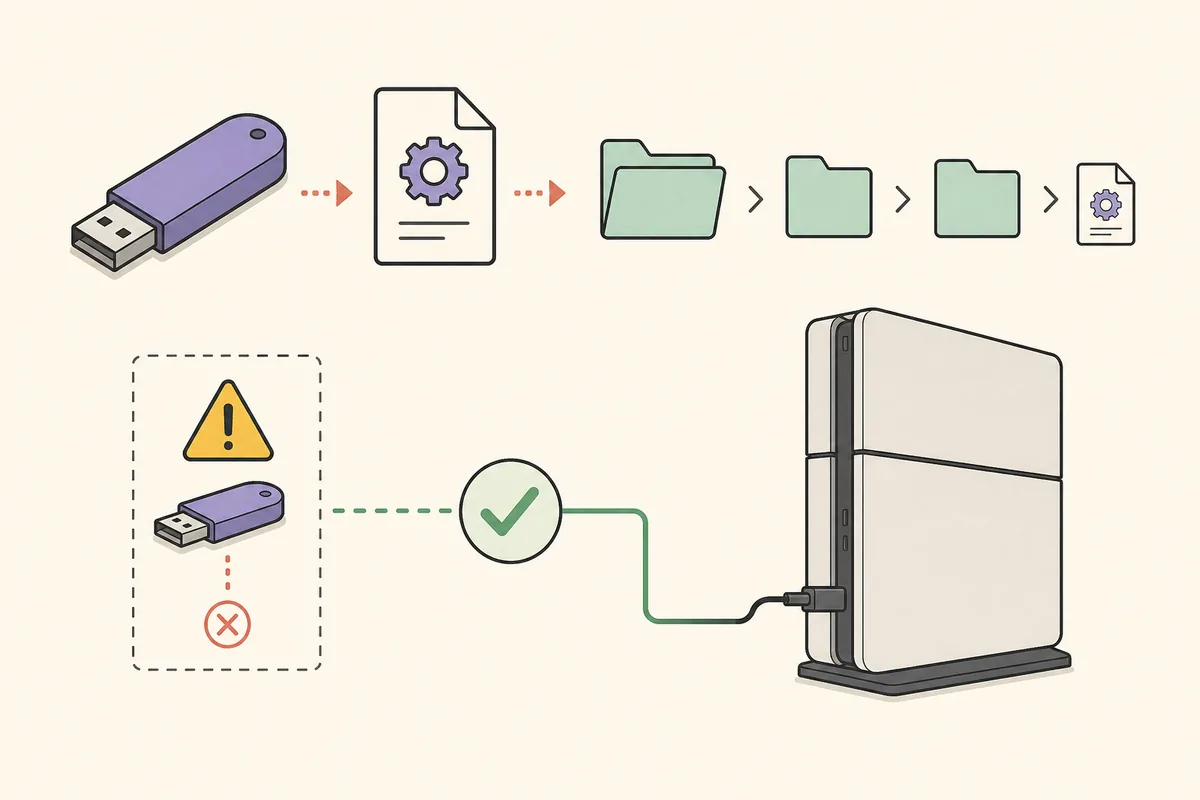
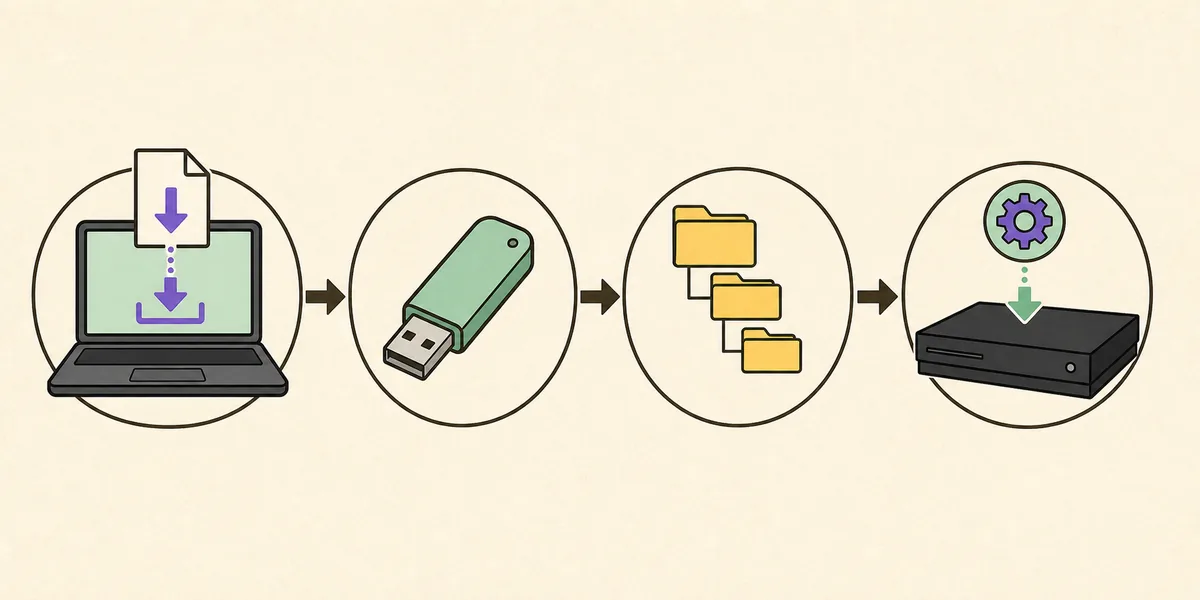
Confirm that the download is exactly 206,197,916 bytes, verify the firmware 4.93 SHA-256, format removable storage as FAT32 with MBR, and place the file at PS3/UPDATE/PS3UPDAT.PUP. If those checks pass, record the exact console error and the percentage where installation stops before using Safe Mode or investigating hardware.
Identify where the PS3 firmware update fails
A download problem and an installation problem can display similar messages but need different fixes. Do not reformat storage or enter recovery mode until you know which stage failed.
The download stage happens in a browser or through the PS3 internet updater. Symptoms include a file that never finishes, a network error, a zero-byte or partial PUP, or a link that opens as text instead of transferring the package. Test the official source, check available disk space, and compare the final byte count before preparing USB storage.
The detection stage begins when a physical console looks for update data. A message saying no applicable update data was found often points to FAT32, MBR, folder names, filename, USB port, or version eligibility. The PS3 has not necessarily parsed the whole package yet, so changing advanced console settings is premature.
The validation or installation stage begins after the console finds the update and checks or applies it. Corrupted-data messages, error codes, percentage-specific stops, restarts into the updater, or Safe Mode prompts can involve the PUP, internal storage, Blu-ray hardware, Bluetooth/Wi-Fi hardware, or an interrupted prior update. Record the exact wording and progress percentage because those details separate file preparation from hardware-dependent failures.
| Failure stage | Typical symptom | First check |
|---|---|---|
| Download | Transfer stops or file is incomplete | Official URL, free space, exact bytes |
| USB preparation | Console cannot see update media | FAT32, MBR, port, folder path |
| Validation | Corrupted data or invalid file | SHA-256 and exact filename |
| Installation | Error code or stop at a repeatable percentage | Storage health and affected hardware |
| Restart | Console returns to update loop | Record error, avoid repeated power cycles |
PS3 firmware download not working: start and finish fixes
The verified Sony PS3 package endpoint uses legacy HTTP infrastructure. Modern browsers may warn about an insecure download initiated from an HTTPS page, block it under mixed-download policy, or require an explicit keep action. The 15-second button on this site does not proxy or modify the package; it navigates to the Sony URL from the current update list. If the browser blocks the request, use the PlayStation support link and your browser's download controls rather than choosing an unrelated mirror.
Check that the destination drive has more than 207 MB free and that security software is not quarantining the PUP because of an unfamiliar extension. PS3UPDAT.PUP is not an executable application, and double-clicking it on Windows or macOS is unnecessary. Save the file instead of asking the operating system to open it.
After the browser reports completion, compare the file size and hash. An interrupted transfer can leave a `.crdownload`, `.part`, or similarly temporary file. A file named PS3UPDAT.PUP that is smaller than 206,197,916 bytes is incomplete. Delete the partial copy before retrying so the browser does not create a confusing numbered duplicate.
- Allow the Sony download explicitly if the browser shows a mixed-download warning.
- Save the PUP; do not try to run it as an application.
- Use a destination with sufficient free space and normal write permissions.
- Wait until temporary download extensions disappear.
- Verify exact bytes and SHA-256 before copying to USB or importing into RPCS3.
Fix “No applicable update data was found”
This message usually means the PS3 cannot locate an eligible update at the expected removable-storage path. Work through the path from the drive outward.
- 1
Confirm FAT32 and MBR
The volume should be FAT32, not NTFS or exFAT, and use an MBR partition scheme. Some large drives and GUID-partitioned media will not be detected by the standard updater even when the folders look correct on a computer.
- 2
Check the root folder
Open the USB drive and confirm PS3 is directly at the root. It must not be inside Downloads, a manufacturer utility folder, another PS3 folder, or a ZIP archive.
- 3
Check UPDATE and filename
Inside PS3, the folder must be UPDATE. Inside UPDATE, the file must be PS3UPDAT.PUP. Enable file extensions so a hidden duplicate extension cannot produce PS3UPDAT.PUP.PUP.
- 4
Confirm the version is applicable
The normal updater will not treat every older PUP as an eligible downgrade. Use the latest official version for a stock update and do not assume a reference-only archive entry can install over newer firmware.
- 5
Try storage and port alternatives
Safely eject the drive, connect it directly to another PS3 USB port, and retry. If possible, test a smaller known-good USB drive freshly formatted as FAT32 MBR.
- 6
Try System Update in Safe Mode
If the normal XMB updater fails but the console can enter recovery, choose System Update with the same prepared drive. Safe Mode does not repair a wrong path or invalid package, so complete the earlier checks first.
Fix corrupted PS3 update data
Calculate SHA-256 on the PUP stored on the USB drive, not only on the original computer copy. A failing drive, unsafe removal, or incomplete copy can change the removable-storage version after the first checksum was recorded. It must match 158471fd834f8ea8036136b6aab43cd86c7ba73d79ca30e0af3c0fe0001cf365 for the verified US 4.93 package.
If the hash differs on both the computer and USB copy, download again from Sony. If the computer copy matches but the USB copy differs, reformat or replace the USB drive and copy again. If both match and the console still reports corruption, confirm that the error refers to update data rather than internal storage, then test Safe Mode and review the exact error code.
Do not repair a PUP with archive software, concatenate partial downloads, or substitute a similarly sized file from a video description or forum attachment. Signed system software must remain byte-for-byte intact. Renaming a corrupted package can satisfy the folder check but cannot satisfy cryptographic validation inside the console.
| Computer PUP hash | USB PUP hash | Likely conclusion |
|---|---|---|
| Mismatch | Not checked | Download is incomplete or different; download again |
| Match | Mismatch | USB copy or drive is corrupt; recopy or replace storage |
| Match | Match | Investigate applicability, internal storage, or hardware-specific error |
| Match | Cannot read | USB file system or drive is failing |
What to do when a PS3 is stuck in an update loop
Stop disconnecting power repeatedly. Record the error code, firmware version, console model, and failure percentage. A repeatable stop is better evidence than another blind retry. If Safe Mode remains available, preserve data and use only the option relevant to diagnosis.
An update loop can follow an interrupted install, storage problem, or hardware fault. Blu-ray, Bluetooth/Wi-Fi, and model-specific failures can block normal OFW installation. NoBD and NoBT packages are modified firmware, not generic Sony repair files.
Use model-specific repair documentation before replacing hardware or selecting a destructive recovery option. Seek professional repair when saves are irreplaceable, storage is failing, or the console cannot remain powered reliably.
This site cannot diagnose hardware from an update percentage alone. Preserve the exact error code and console model, then use a qualified repair source for hardware-dependent failures.