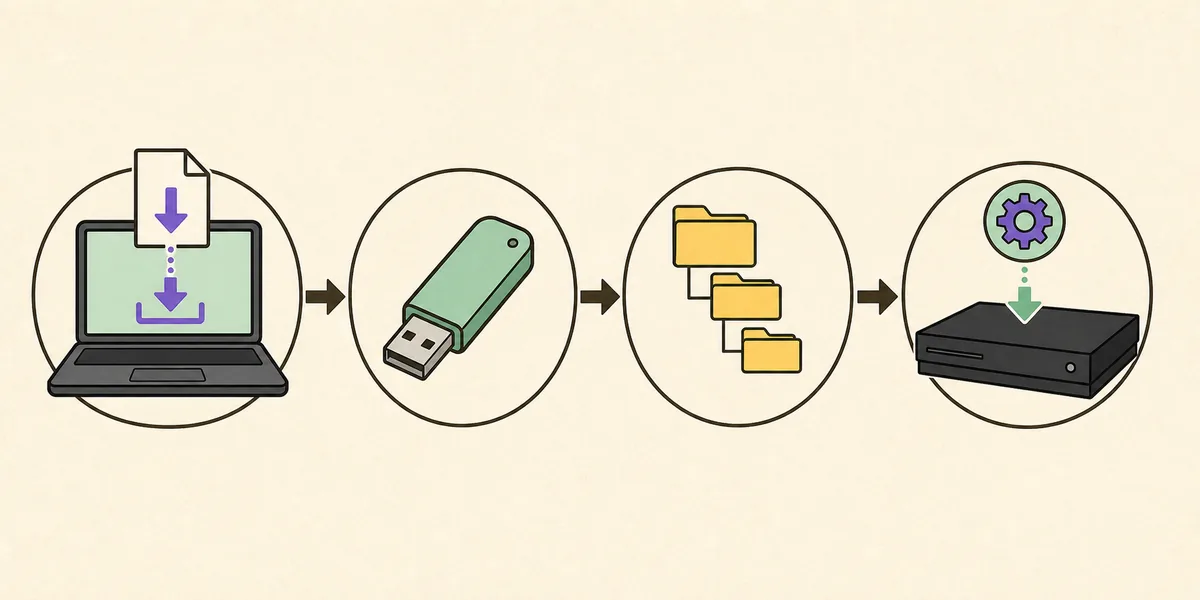
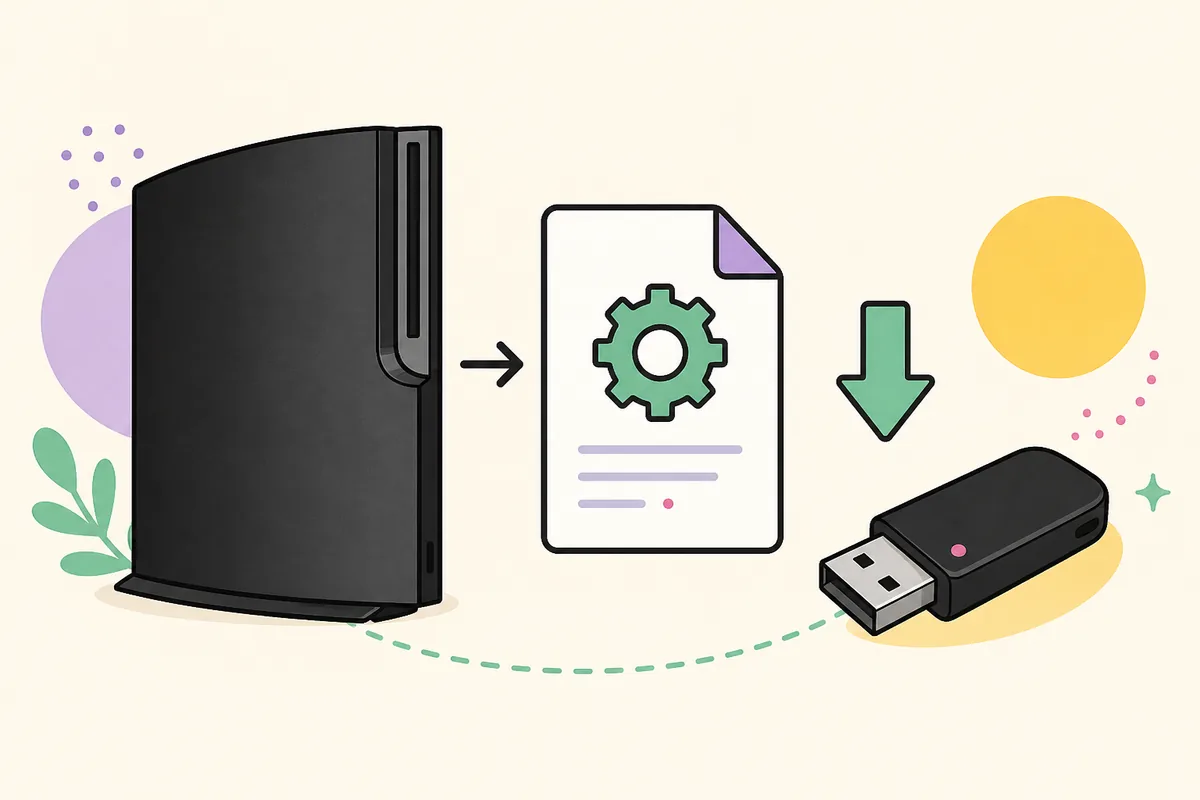
For an offline PS3 system software update, format removable storage as FAT32 with an MBR partition, create PS3 at the root, create UPDATE inside it, and place the verified file at PS3/UPDATE/PS3UPDAT.PUP. Get the package from the verified firmware details before copying it. On the console, choose Settings > System Update > Update via Storage Media. Use Safe Mode when the normal menu cannot start or complete the update.
Before you install a PS3 system software update
A few checks before installation prevent most update failures and protect the console from avoidable interruptions.
Confirm that the package matches your goal. Sony OFW 4.93 is appropriate for a normal stock-console update, but owners maintaining custom firmware, HEN, or another modification should verify current compatibility before accepting OFW.
Provide stable power because the PS3 must not be turned off while system software is being written. Remove unnecessary USB accessories and leave at least 200 MB free on the internal drive or update storage.
Download PS3UPDAT.PUP completely and verify it before connecting the USB drive to the console. Version 4.93 should contain exactly 206,197,916 bytes and match SHA-256 158471fd834f8ea8036136b6aab43cd86c7ba73d79ca30e0af3c0fe0001cf365. File-size rounding alone is not enough because partial or altered packages can still look close in a graphical file manager.
- Back up important saves and settings when practical.
- Use stable AC power and never interrupt an active system update.
- Keep at least 200 MB free and check the internal drive for errors.
- Verify the PUP checksum before installation.
- Research modification compatibility before installing official firmware.
Method 1: Update PS3 through the internet
The built-in network updater is the simplest method when the console boots normally and has a reliable internet connection.
- 1
Connect the PS3 to the internet
Use a stable wired connection when available. Confirm the console can reach network settings and that date and time are reasonable. A weak wireless connection can fail during download even though the update installation has not begun.
- 2
Open System Update
From the XMB home menu, go to Settings, select System Update, and choose Update via Internet. The console checks Sony's update service for the newest version applicable to the system.
- 3
Review the version and agreement
Read the displayed version and notices before accepting. If the console is modified or you expected a different maintenance workflow, cancel rather than assuming every official update is appropriate.
- 4
Download and install
Allow the download and installation to finish. Do not switch off power, reset the console, or disconnect storage while the progress screen says the update is being applied.
- 5
Confirm the installed version
After restart, open Settings > System Settings > System Information and confirm the system software version. If the console returns to an update loop, use the troubleshooting guide before repeating the same steps.
The internet method downloads directly on the console. The 15-second website download countdown applies only when you choose the PUP for USB installation or RPCS3.
Method 2: Install PS3 firmware from USB
Use USB installation when the console is offline, the network download fails, or you need a controlled verified file. Folder names, partition format, and filename all matter.
- 1
Prepare a compatible USB drive
Connect the drive to a computer and format it as FAT32 using an MBR partition scheme. Formatting erases the drive, so copy any needed files elsewhere first. A drive formatted only as exFAT or NTFS will not work for the standard updater.
- 2
Create the exact folders
At the root of the drive, create a folder named PS3. Inside PS3, create a folder named UPDATE. Use standard characters and uppercase names. The result must be PS3/UPDATE, not PS3 Update, update/PS3, or a folder nested under Downloads.
- 3
Copy PS3UPDAT.PUP
Place the verified firmware file inside UPDATE and name it exactly PS3UPDAT.PUP. Make sure Windows is not hiding extensions and producing PS3UPDAT.PUP.PUP. The complete path is PS3/UPDATE/PS3UPDAT.PUP.
- 4
Safely eject the drive
Wait for all writes to finish, then use the operating system's eject function. Removing storage while data is cached can corrupt the copied PUP even when the original computer download was correct.
- 5
Start Update via Storage Media
Connect the drive directly to the PS3. Open Settings > System Update, choose Update via Storage Media, and allow the console to find the applicable data. Review the version before accepting installation.
- 6
Leave the console powered on
Follow the on-screen instructions and do not remove the USB drive or turn off the system until the update completes and the console restarts. Confirm the new version in System Information afterward.
Method 3: Install firmware in PS3 Safe Mode
Safe Mode is useful when the XMB cannot load or the normal updater cannot complete. It does not make an incompatible, older, or corrupted PUP valid, so prepare the USB drive exactly as described above.
Turn the PS3 completely off so the power light is red. Hold the power button; the console starts and then powers off again. Release the button. Hold it again until you hear the initial beep, another beep, and then two quick beeps. Release immediately after the double beep. Connect the controller with a USB cable and press the PS button when requested.
Choose System Update from the recovery menu and follow the prompts for removable storage. Read every warning because other Safe Mode options can rebuild the database, restore the file system, or erase data. Do not select Restore PS3 System when your goal is only to apply firmware. If the updater still reports no applicable data, return to a computer and check the partition scheme, folder path, filename, byte size, and SHA-256.
| Safe Mode option | Purpose | Use for firmware install? |
|---|---|---|
| Restart System | Leaves recovery and restarts normally | No |
| Restore File System | Checks and repairs file-system problems | Only when storage errors are suspected |
| Rebuild Database | Reindexes content on the internal drive | Not the firmware installer |
| System Update | Loads official update data | Yes |
| Restore PS3 System | Returns the system to factory state and can erase data | No, unless intentionally resetting |
Confirm the update completed correctly
Open Settings > System Settings > System Information and check the displayed system software version. For this guide, a completed latest update should show 4.93. Confirm network access and launch normal system features only after the console reaches the XMB without returning to an update screen.
Keep a note of the PUP hash and source date if you maintain consoles or provide repair documentation. You may remove the USB update file after the console is working, but preserving one verified copy avoids another large download. Store it in a version-labeled folder on your computer while leaving the firmware filename unchanged inside that folder.
If the console repeatedly starts the updater, displays an error code, or cannot reach the XMB, stop cycling power. Record the exact message and percentage where failure occurs. A loop can involve storage, Blu-ray drive, Bluetooth/Wi-Fi hardware, or a previously interrupted installation, and repeatedly applying the same file will not resolve every cause.
- System Information reports version 4.93.
- The console reaches the XMB without returning to the updater.
- Controllers, storage, network, and disc hardware behave normally.
- No error code remains after restart.