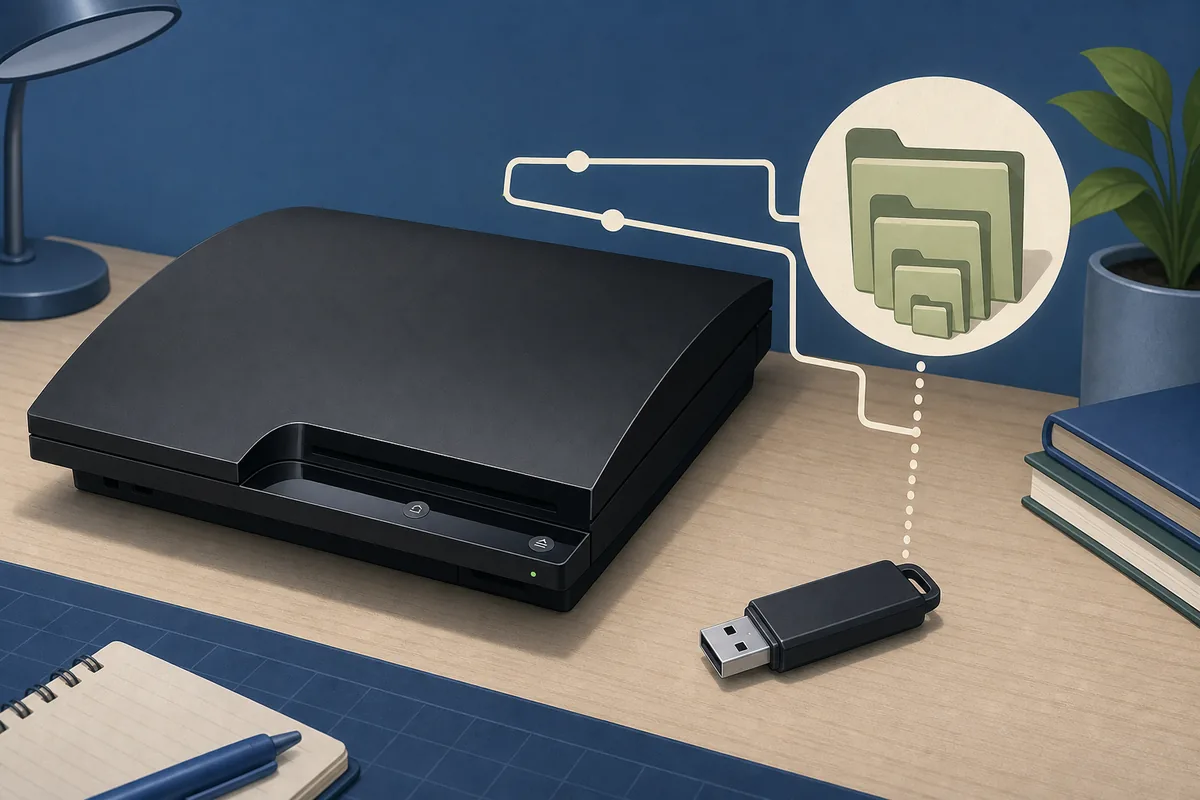
Back up the USB drive, format it as FAT32, and choose an MBR partition map when the disk utility offers that setting. At the root of the drive, create PS3, create UPDATE inside it, and copy the official firmware so the final path is PS3/UPDATE/PS3UPDAT.PUP.
The PS3 commonly ignores NTFS, exFAT, GPT-only layouts, duplicate nested folders, and renamed downloads such as PS3UPDAT (1).PUP. Verify the storage layout and exact filename before assuming the firmware package is defective.
PS3 USB format requirements
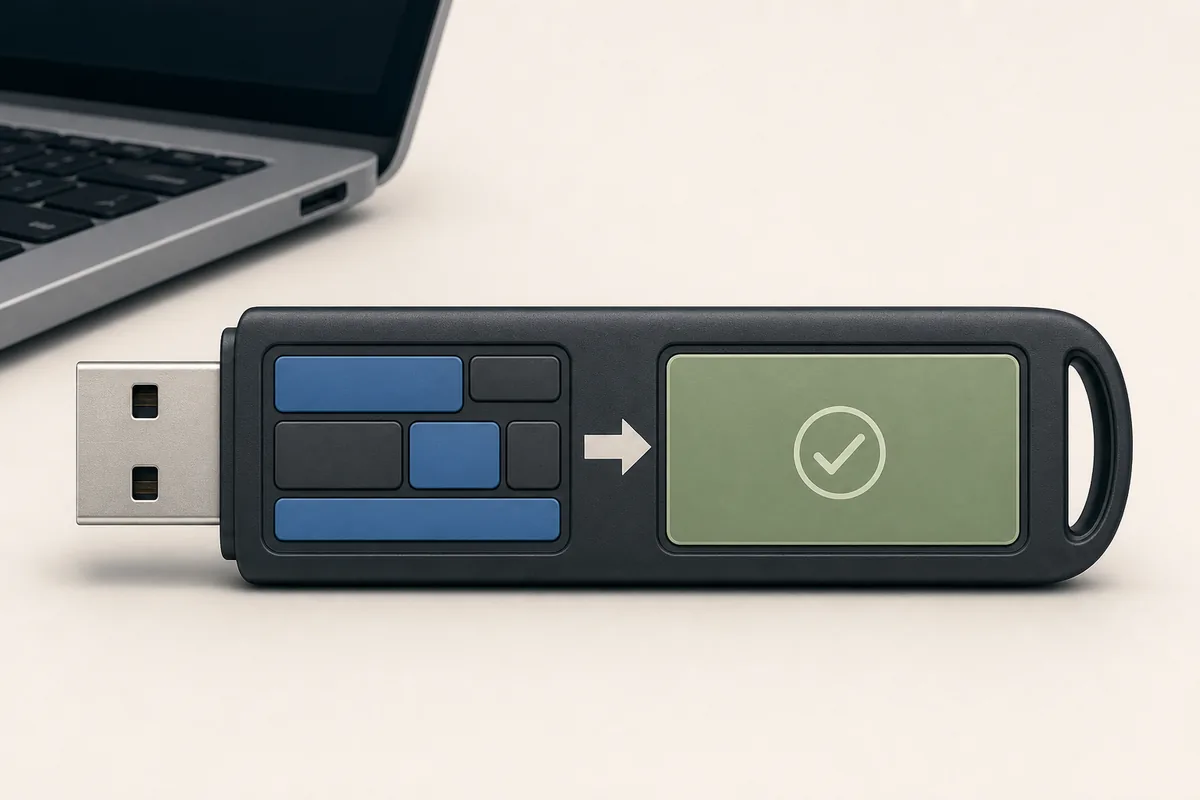
The most reliable update media is a simple removable drive with one FAT32 partition, an MBR map, and the exact folder path.
| Setting | Use | Reason |
|---|---|---|
| File system | FAT32 | NTFS and exFAT commonly prevent update detection |
| Partition map | MBR preferred | A GPT-only layout may not be recognized reliably |
| Partitions | One primary partition | A simple layout avoids scanning the wrong volume |
| Folder path | PS3/UPDATE | Both uppercase folders must start at the USB root |
| Filename | PS3UPDAT.PUP | Remove spaces, duplicate suffixes, ZIP extensions, and version numbers |
| Free space | At least 200 MB | Official 4.93 is 206,197,916 bytes, about 196.65 MiB |
Formatting erases the selected volume. Confirm the USB device by name and capacity, then copy important files elsewhere before continuing.
Format the USB as FAT32 with MBR
The controls differ on Windows and macOS, but the target is the same: one FAT32 volume on the correct removable device.
- 1
Back up and identify the drive
Disconnect other removable disks, match the target by capacity, and save its existing files elsewhere.
- 2
Choose the compatible layout
Use FAT32 and select Master Boot Record or MBR when the tool exposes a partition-scheme option.
- 3
Windows method
In File Explorer, right-click the removable drive and choose Format. Select FAT32 and Quick Format. If FAT32 is unavailable or the drive is GPT, use Disk Management, a smaller drive, or a reputable FAT32-capable utility.
- 4
macOS method
In Disk Utility, choose View > Show All Devices, select the physical USB device, click Erase, choose MS-DOS (FAT), and set Scheme to Master Boot Record.
- 5
Reconnect and verify
Safely eject the drive, reconnect it, and confirm the computer mounts one FAT32 volume before adding folders.
Do not choose exFAT merely because it supports large files. The PS3 system-update package is small enough for FAT32, and FAT32 is the compatibility target.
Create PS3/UPDATE and copy PS3UPDAT.PUP
A correct file system is not enough. The console scans a specific uppercase folder chain and expects the official filename.
- 1
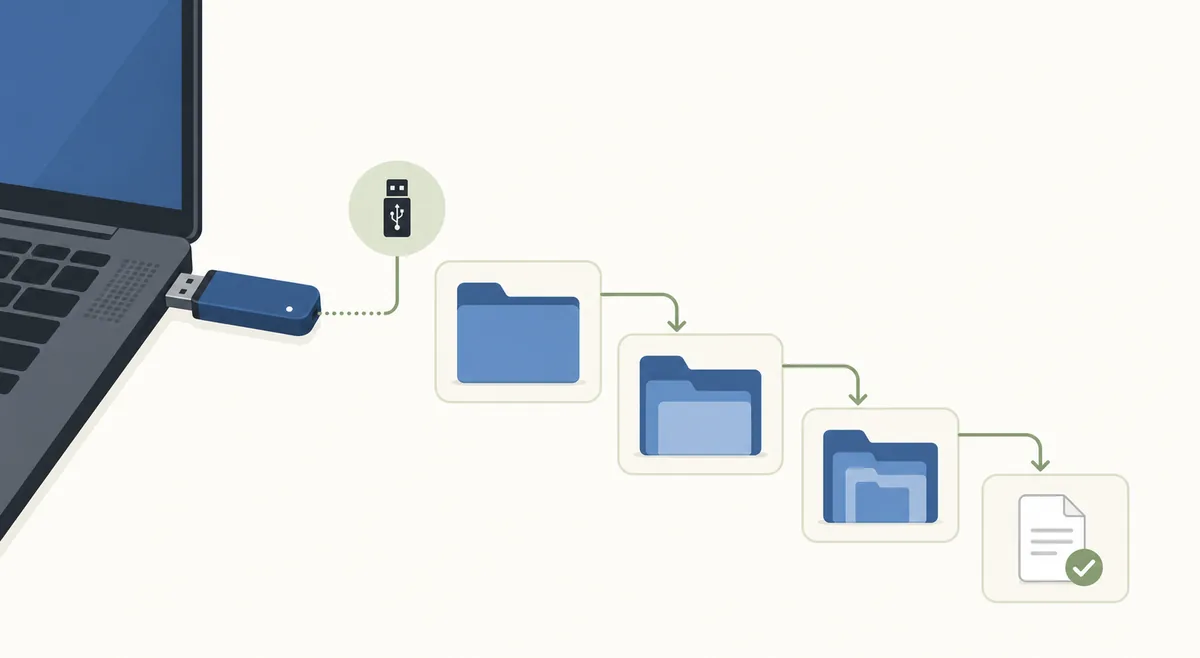
Create PS3 at the root
Open the USB drive itself and create a folder named PS3. Do not put it inside Downloads or another wrapper folder.
- 2
Create UPDATE inside PS3
Open PS3 and create a second uppercase folder named UPDATE.
- 3
Copy the official PUP
Place the verified firmware file inside UPDATE. The current official 4.93 file is named PS3UPDAT.PUP and is 206,197,916 bytes.
- 4
Reveal file extensions
Reject names such as PS3UPDAT.PUP.zip, PS3UPDAT.PUP.pup, PS3UPDAT (1).PUP, or an incomplete browser-download file.
- 5
Check the final path
The only required chain is PS3/UPDATE/PS3UPDAT.PUP, starting directly from the USB root.
Use the USB and fix detection problems
Safely eject the drive, connect it directly to a front PS3 USB port, and choose Settings > System Update > Update via Storage Media. The same prepared drive also works with System Update in Safe Mode.
Do not remove the drive or cut power while the PS3 verifies or installs system software. Read the displayed version and agreement before confirming the update.
Do not switch to unofficial NoBD, NoBT, custom, or modified firmware simply because the official package is not detected. Hardware-specific firmware changes have separate risks and are outside this media-preparation guide.
| Symptom | Likely cause | Next action |
|---|---|---|
| USB is not visible | Port, hub, drive, partition, or power issue | Remove hubs and test another front port or ordinary flash drive |
| USB is visible but update is missing | Wrong folders or filename | Rebuild PS3/UPDATE and reveal extensions |
| Update is found but rejected | Incomplete file or wrong package | Compare the byte size and download the verified official PUP again |
| Safe Mode cannot find it | USB layout or controller-cable issue | Recheck FAT32/MBR/path and use a data-capable controller cable |
| One large drive keeps failing | Compatibility or multi-partition layout | Try a smaller single-partition FAT32 MBR drive |