

For a normal PS3 update or a first RPCS3 setup, use Sony official firmware (OFW). The verified official package on this site is PS3 system software 4.93, named PS3UPDAT.PUP. For a PS3 that is already being prepared for a specific HEN or homebrew workflow, HFW may be required, but only when current model-specific documentation says so.
HFW is not a newer name for OFW, a universal downgrade file, or a safer replacement for every console. This page narrows the choice between HFW and OFW; the broader OFW vs HFW vs CFW guide explains all three categories, while the 4.93 page holds the file facts and checksum. Never install a package because the filename looks familiar alone.
PS3 HFW vs OFW: choose by destination
The shortest reliable answer to PS3 HFW vs OFW is to name the destination before naming the file.
A stock console owner who wants normal PlayStation Network features, a routine system update, or a reinstall should begin with OFW. Sony's support page lists version 4.93 as the current PS3 system software and describes Internet and USB update paths. That is a different job from preparing a console for HEN.
An RPCS3 user normally imports the official Sony PUP through File > Install Firmware. The emulator does not need a separate PS3 BIOS archive, and HFW is not a default shortcut for an emulator setup. Keeping that boundary visible prevents an emulator user from downloading a modified package intended for physical hardware.
A HEN or homebrew reader has a different starting question: does the maintained workflow for this exact model, minimum version, and current software state require HFW? If the documentation does not name HFW, do not infer it from a search result, a forum signature, or a package filename.
| Goal | Starting category | Evidence to record | Do not assume |
|---|---|---|---|
| Routine console update | OFW | Sony support page, model, current version | The latest file is compatible with every modified console |
| RPCS3 first setup | OFW | Official PUP, SHA-256, RPCS3 version | RPCS3 needs a separate BIOS download |
| HEN preparation | HFW only if required | Model-specific guide, prerequisites, current state | HFW works on every PS3 |
| Existing CFW maintenance | Follow the CFW guide | Installed category, flash and recovery plan | OFW or standard HFW is a neutral repair file |
| Unclear or failing update | Pause and verify | Error code, stage, USB layout, file hash | Changing firmware type will fix storage or hardware faults |
OFW for a stock PS3 or RPCS3
OFW means official firmware distributed through Sony's PlayStation update channel. It is the default category for an unmodified console and for RPCS3 firmware import. The current verified package listed in the archive is version 4.93, with the filename PS3UPDAT.PUP, an exact byte count, and published SHA-256 and MD5 values.
Sony's USB instructions require a FAT32 drive, a folder named PS3, an UPDATE subfolder, and the exact filename PS3UPDAT.PUP. The console menu is Settings > System Update > Update via Storage Media. A PC download is not complete evidence until the local file has the expected size and hash.
For RPCS3, keep the PUP intact and use File > Install Firmware. Do not extract it into the emulator directory, rename it to an ISO, or use Install Packages/Raps for system software. If the import fails, check the download, permissions, file extension, and RPCS3 version before changing firmware categories.

- Use the verified Sony source and record the date you checked it.
- Compare the exact filename, byte size, and SHA-256 before installation.
- Keep a backup and stable power during a console update or reinstall.
- Treat an altered console as a separate compatibility decision before installing OFW.
HFW for a documented HEN workflow
HFW usually means hybrid firmware: a package built from official firmware components with changes used by a particular homebrew or HEN workflow. Its purpose is narrower than OFW's general system-software role. HFW may make a supported exploit or enablement sequence possible, but the label alone does not establish eligibility.
Before considering HFW, write down the PS3 model family, current system version, minimum factory version when known, current modification state, and the exact guide you intend to follow. The guide should state the required HFW version, prerequisites, order of operations, and recovery path. If those details are missing, stop rather than guessing.
HFW is also not a toggle that can be turned off like HEN. Firmware remains installed; a soft-mod enablement step may need to be repeated after a restart. Community explanations often blur those terms, so the safe article boundary is to describe the category and verification questions without distributing an unverified HFW binary.
Do not install standard OFW over a modified console simply to clear a warning. An official update can change the software state and may remove access to a homebrew workflow. Back up important data and follow the maintained documentation for that model before accepting any update.
- Use HFW only when a current, model-specific workflow explicitly names it.
- Confirm the exact version and hash from the workflow's trusted source.
- Keep OFW, HFW, CFW, NoBD, and NoBT packages in separate notes and folders.
- Have a recovery plan before changing a console that already has a modification.
This site explains the HFW and OFW choice but does not provide modified firmware downloads or instructions for bypassing console security.
HFW vs OFW decision table for common situations
Use the table as a pause point, not as an automatic installer. The correct answer depends on the destination and the current state, and a verified file can still be the wrong file for a modified console. When the evidence is incomplete, record the missing fact and stop.
A version number such as 4.93 identifies a release line; it does not tell you whether a package is OFW or HFW. Two files can use the same PUP extension and the same conventional filename while serving different workflows. Source, hash, model, and sequence must stay together.
| Situation | Likely next step | Why | Boundary |
|---|---|---|---|
| Unmodified PS3 on an older release | Read Sony's OFW 4.93 instructions | Routine system software update | Check backups and free space first |
| RPCS3 asks for firmware | Import the verified OFW PUP | RPCS3 uses official system software | Do not search for a separate BIOS |
| HEN guide names a required HFW | Verify that guide and model | HFW is workflow-specific | Do not substitute a random newer PUP |
| Console has CFW or a flash exploit | Pause and follow its maintenance guide | OFW can change the modification state | Do not use a stock update as a generic repair |
| USB update is not detected | Check FAT32, MBR, path, and hash | The issue may be storage or filename | Do not switch categories before file checks |
Verify the PS3 firmware file before updating
Verification protects both stock-console and HEN readers from a mislabeled package. Sony's page identifies the filename and folder path, while the version detail page records the current package size and checksums. Use those facts as a checklist; a green download button is not a checksum.
On a computer, download the file without opening or extracting it. Confirm that the final name is PS3UPDAT.PUP rather than PS3UPDAT.PUP.zip, PS3UPDAT.PUP.exe, or a duplicate extension hidden by the file manager. Compare the byte count and SHA-256 with the verified record. If they differ, download again from the source and do not install the copy.
For a USB update, use a simple FAT32 MBR drive and create PS3/UPDATE at its root. Safely eject the drive, connect it directly to the console, and select Update via Storage Media. If the console cannot see the data, troubleshoot the drive and path before deciding that a different firmware category is needed.
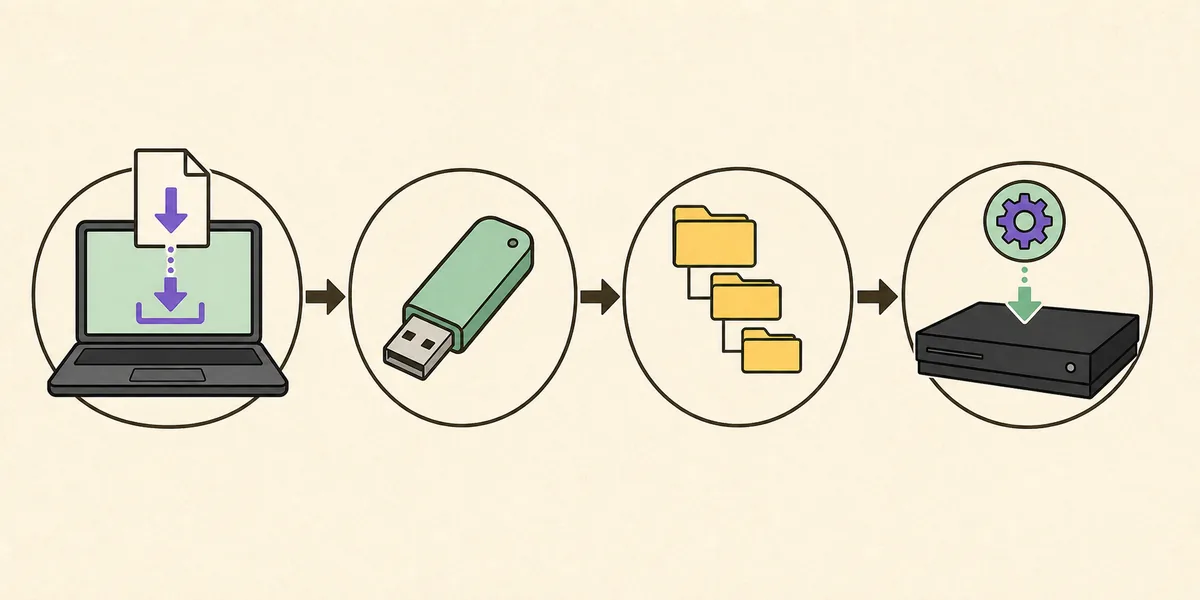
- 1
Name the destination
Write down physical PS3, RPCS3, HEN maintenance, or another documented workflow.
- 2
Record the current state
Note model, version, modification state, error code, and whether XMB or Safe Mode works.
- 3
Match the category
Use OFW for ordinary updates and RPCS3; use HFW only when the maintained workflow requires it.
- 4
Check file facts
Keep source URL, filename, exact bytes, SHA-256, and verification date together.
- 5
Install through the matching guide
Use Sony's console menu, RPCS3's firmware importer, or the model-specific guide you already verified.
When neither OFW nor HFW is a complete answer
A failed update can be caused by an incomplete download, wrong partition layout, hidden file extension, failing storage, unstable power, or a hardware fault. Switching from OFW to HFW does not repair those conditions. Capture the exact message and failure stage first, then use the troubleshooting and Safe Mode guides for the least destructive next check.
A console with CFW, a flash exploit, or a known NoBD or NoBT condition needs model-specific maintenance advice. The fact that an OFW PUP is authentic does not make it safe for every altered console. The same is true for HFW: a hybrid label is not proof that the package fits your model or current version.
Do not use this page to select game updates, ISO files, RAP files, or emulator builds. Those are separate assets. Do not accept a mirror that hides the source, changes the filename, wraps the PUP in an executable, or promises a universal downgrade.
- Pause when the model, current version, or modification state is unknown.
- Keep a backup before any update or reinstall that can change system state.
- Use the existing troubleshooting page for USB, corruption, and update-loop symptoms.
- Escalate to qualified repair documentation when the same error repeats after file and storage checks.
A clear next step after the HFW vs OFW choice
If your goal is an ordinary console update, open the verified 4.93 page and follow Sony's Internet, USB, or Safe Mode route. If your goal is RPCS3, use the same official PUP with the emulator's File > Install Firmware command. If a HEN guide explicitly requires HFW, stay inside that guide and verify the model, version, source, hash, and recovery plan before installing anything.
This separation keeps the download path honest: OFW facts and links remain auditable, while HFW explanations remain a compatibility aid rather than an unverified distribution channel. When the answer is still uncertain, the safest next action is to collect the missing state information, not to try another PUP.